Photos Taking Tips
- Use a neutral background, like a light colored wall or a plain sheet hung up as a backdrop.
- Do what you can for a continous surface as well, like using a wide table or a pair of tables covered with a cloth for uniformity. Try to avoid including the table edge in the photo, or make it so the edge of the table can be cropped out without cutting off your model.
- Lights in the background cause glare.
- Strong sunlight, artificial lights, and flashes cause shadows and glare
- When shooting indoors, try to find a room with lots of natural light, but out of direct sun
- When shooting outdoors, try to pick a slightly overcast day
Uploading photos
- Photos above 2048 pixels in either direction will be automatically reduced. You can improve your upload time by resizing them first.
Creating a Model Page
Go to this page to begin the process. You will enter all of the details here and create the content after submitting the data. Upon submit, you will be redirected to the model page, which will still be in draft mode. Click the “Edit Model” link at the top.

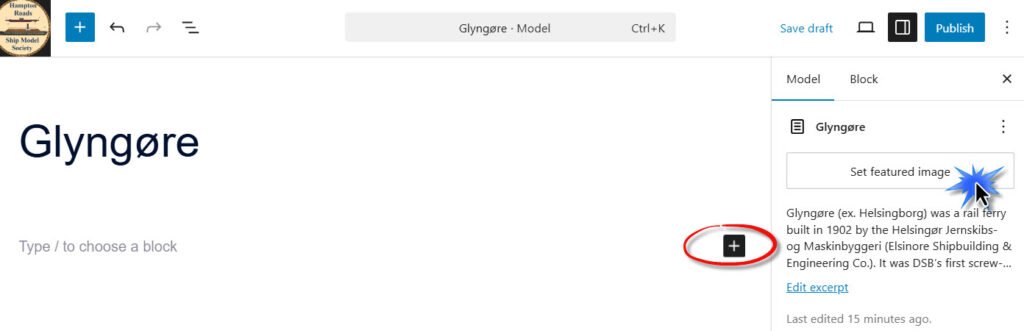
Here you will be able to compose the content for the model. The editor uses “blocks”. Documentation for the standard blocks can be found on the WordPress website. WordPress is the “engine” on which our website is built. In addition to the standard blocks, we are using Kadence Blocks, an addon to that engine. Unfortunately, I’ve not been able to find sucienct documentation for these blocks. At some point I will explain the most-used Kadence blocks in this help page.
Add a new block by clicking on the + sign.
Play with it. Ask for help. Alternatively, provide a Word, PowerPoint, or text document and an admin will create the post for you if you give him a donut. Don’t forget to add a featured image!